
How to use the Android MCP SMS Server in Hermes Agent
This guide explains how to connect the Ozeki Android SMS Gateway MCP server to Hermes Agent, enabling the AI assistant to send SMS messages directly from your Android phone. By following this tutorial, you will learn how to install the Ozeki Android SMS Gateway app, enable its built-in MCP server, register the MCP endpoint in Hermes Agent, and verify that everything is working by sending a test message.

Solution: How to send SMS from Hermes Agent
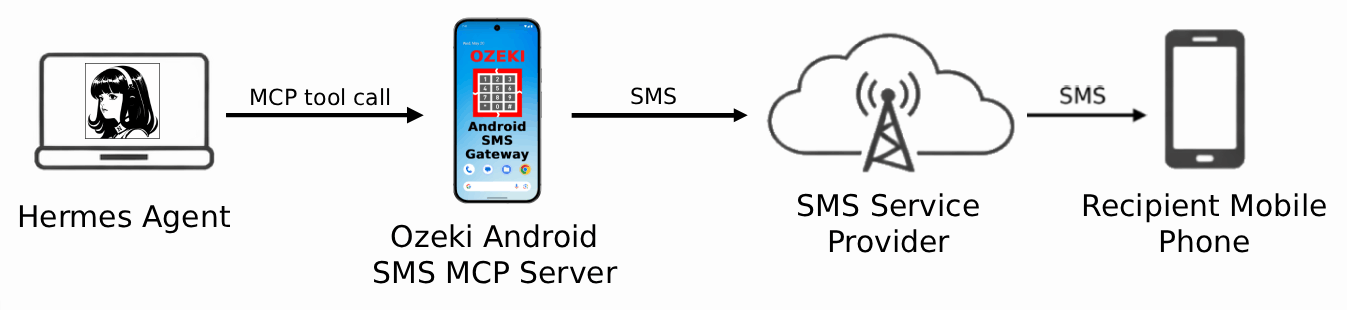
Hermes Agent is connected to the Ozeki Android SMS MCP Server through the MCP protocol, where Hermes Agent is the MCP client and the Android phone is the MCP server. The Android phone is connected to the SMS service provider through a wireless mobile network connection. When an SMS is sent, it first travels from Hermes Agent to the Android phone through the MCP protocol, and the Android phone forwards it to the SMS service provider, which delivers it to the recipient's mobile phone.
What is Hermes Agent?
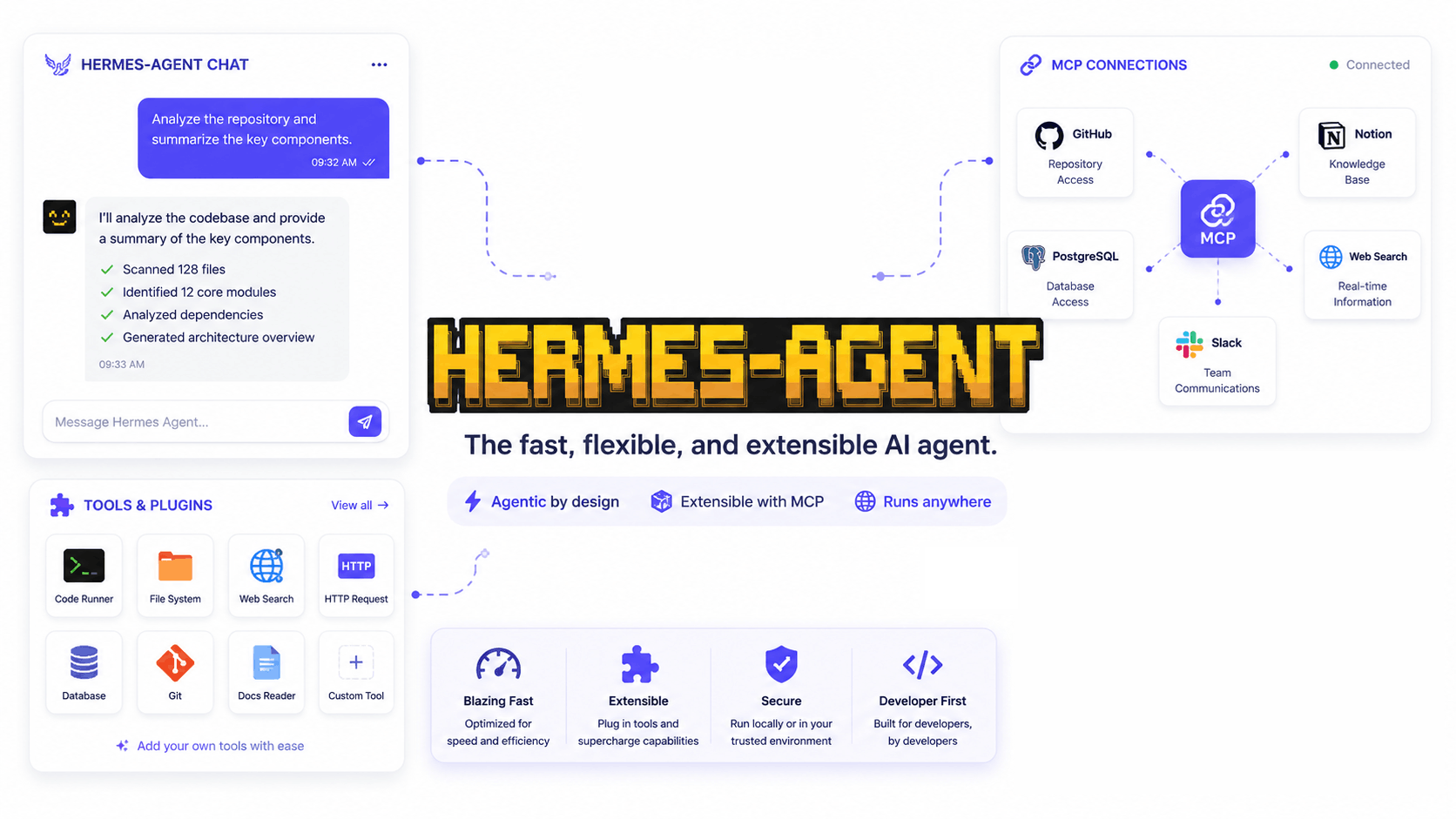
Hermes Agent is an open-source autonomous AI agent developed by Nous Research. Unlike a simple chatbot, Hermes is a fully capable agent that can execute terminal commands, manage files, run scheduled tasks, and connect to messaging platforms such as Telegram or Discord.
What is an Android SMS MCP Server?
An Android SMS MCP Server is a Model Context Protocol server that runs directly on an Android smartphone and exposes SMS functionality — such as sending text messages and querying SIM subscriptions — as structured tools that any MCP-compatible AI client can call. Once installed and configured, the AI client can send real SMS messages through the phone's SIM card to any phone number, with a single tool call.
Download Ozeki Android SMS Gateway
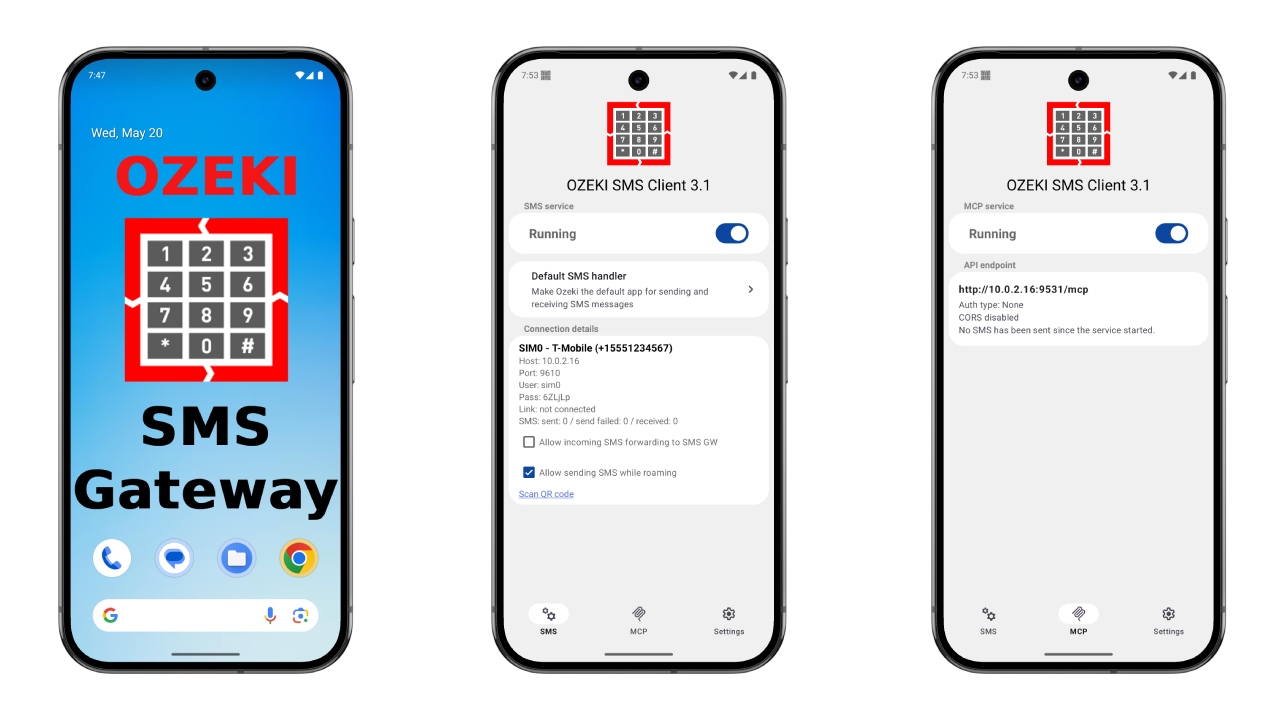
To use this solution you need to install the Android app on your Android phone.
Download the android app: Android SMS Gateway
https://android-sms-gateway.com/p_51-download-android-sms-gateway.html
Steps to follow
You will need Hermes Agent installed on your system. If you have not set it up yet, follow our Hermes Agent installation guide.
- Install Ozeki Android SMS Gateway
- Enable MCP SMS Server
- Hermes Agent SMS MCP Server Config
- Add the SMS MCP Server config to Hermes Agent
- Start Hermes Agent and verify connection
- Send a test SMS
- Check the SMS in the SMS Gateway logs
Step 1 - Install Ozeki Android SMS Gateway
For a full tutorial on installing the Ozeki Android SMS Gateway, check out our How to install Android SMS Client and Enable Ozeki SMS Client permissions guides.
Before you can use the MCP SMS Server, you need to install the Ozeki SMS Client on your Android device. The app will serve as the local SMS gateway that Hermes Agent connects to over your Wi-Fi network. Make sure both devices are on the same local network, as this is required for the HTTP connection to work.
Step 2 - Enable MCP SMS Server
For a full tutorial on enabling the MCP server in the Android app, check out our Android MCP SMS Server configuration guide.
Open the Ozeki SMS Client app on your Android device and tap the MCP tab in the bottom navigation bar. Tap the toggle switch to start the MCP server and grant any permission requests that appear, including access to SMS messages. The toggle will switch from "Stopped" to "Running" and the API endpoint URL will appear below. Copy this URL, as you will need it when configuring Hermes Agent in the next step.
Step 3 - Hermes Agent SMS MCP Server Config
# Upgrade the MCP package in the Hermes Agent virtual environment
uv pip install --upgrade mcp --python $env:LOCALAPPDATA\hermes\hermes-agent\venv

# Configuration file location:
C:\Users\%USERPROFILE%\AppData\Local\hermes\config.yaml

# Add the following block inside the mcp_servers property in config.yaml
# Replace {address} with your Ozeki Android SMS Gateway address
mcp_servers:
  ozeki_android_sms_mcp:
    url: "http://{address}:9531/mcp"
Example prompt
Send an SMS to +36301111111, the message should be "Hello from Hermes".
Step 4 - Add the SMS MCP Server config to Hermes Agent
The following video shows how to add the Android SMS MCP server to Hermes Agent step-by-step.
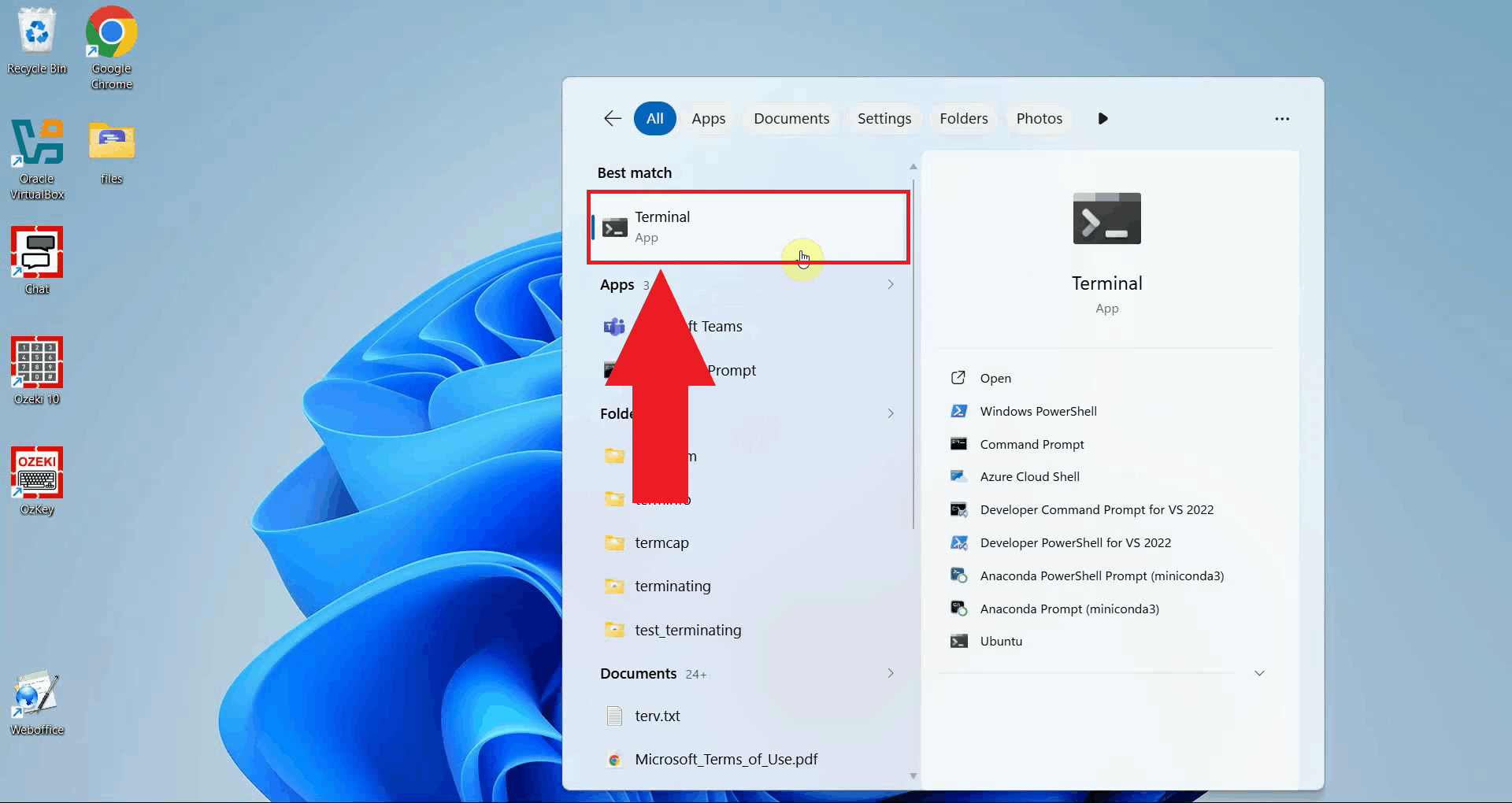
Open a PowerShell terminal by searching for Terminal in the Start menu. The following steps require PowerShell as Hermes Agent is installed as a native Windows application (Figure 1).
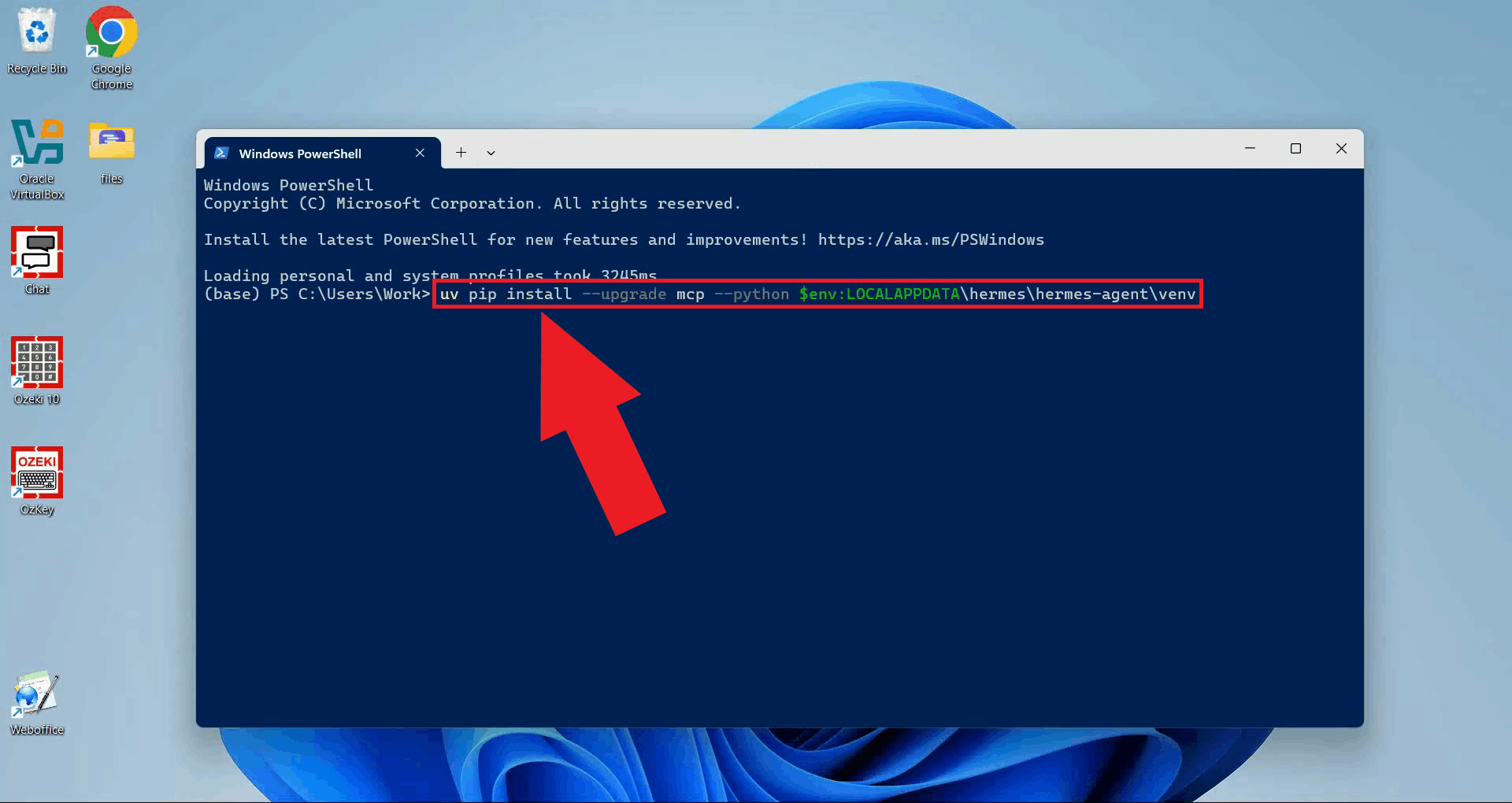
Run the following command in the terminal to upgrade the MCP package inside the Hermes Agent virtual environment. This ensures Hermes Agent has the latest MCP client libraries needed to communicate with the SMS MCP server (Figure 2).
uv pip install --upgrade mcp --python $env:LOCALAPPDATA\hermes\hermes-agent\venv
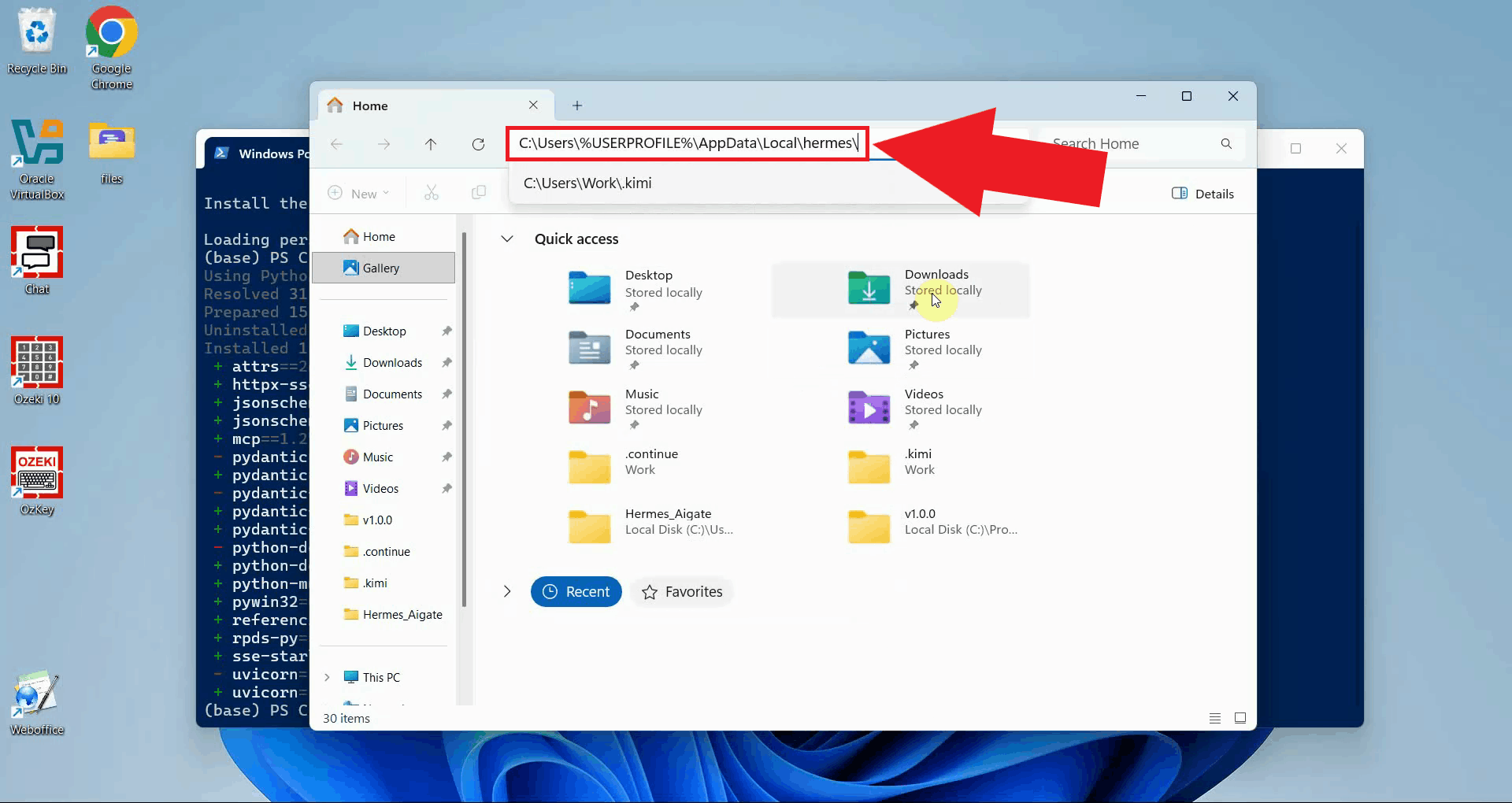
Navigate to the Hermes Agent data directory at
C:\Users\%USERPROFILE%\AppData\Local\hermes\ using File Explorer.
You can open this folder quickly by typing
%USERPROFILE%\AppData\Local\hermes directly into the File Explorer
address bar and pressing Enter (Figure 3).
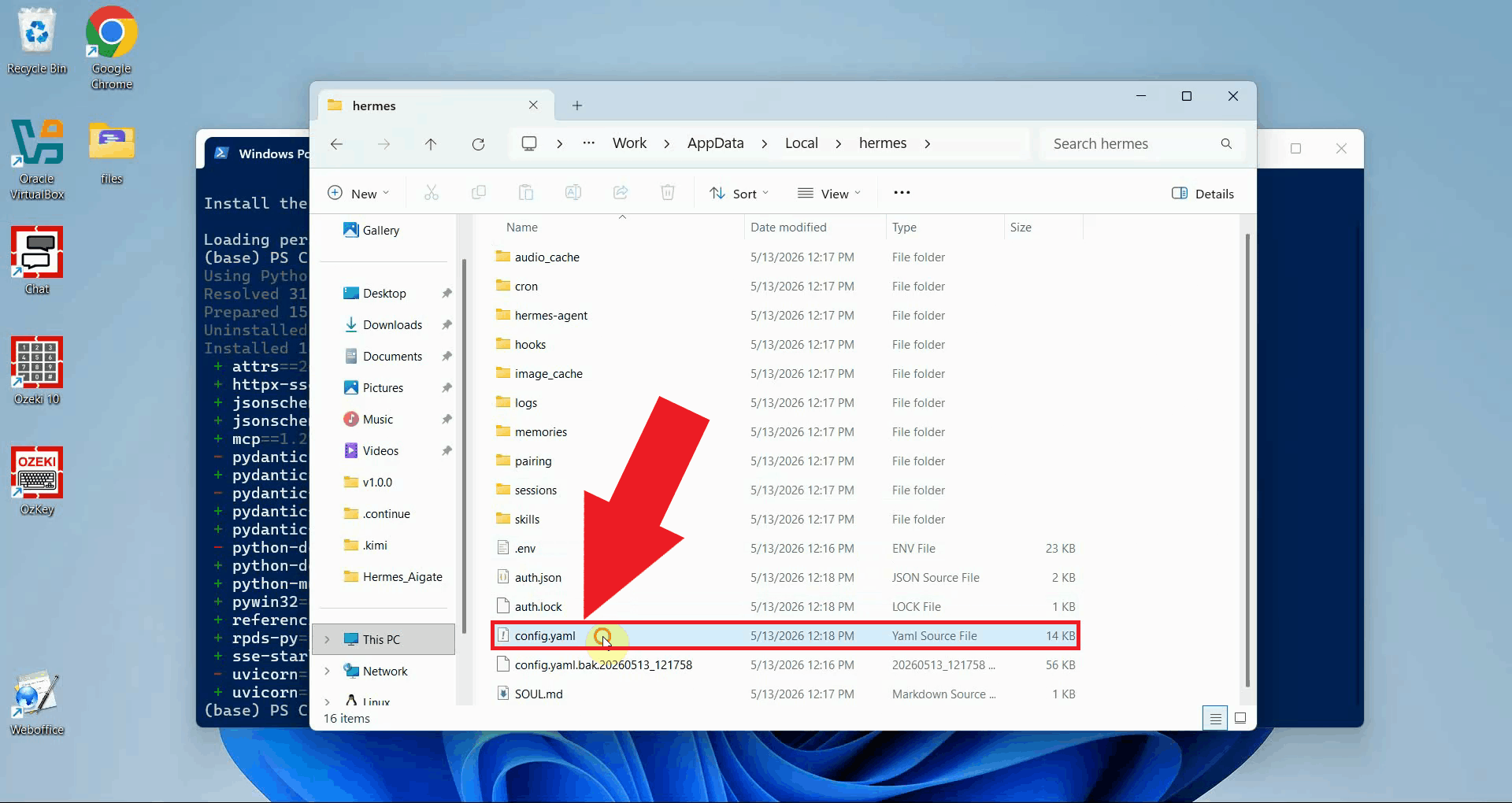
Open the config.yaml file in a text editor such as Notepad or Visual Studio Code.
This file stores all Hermes Agent configuration, including any MCP servers (Figure 4).
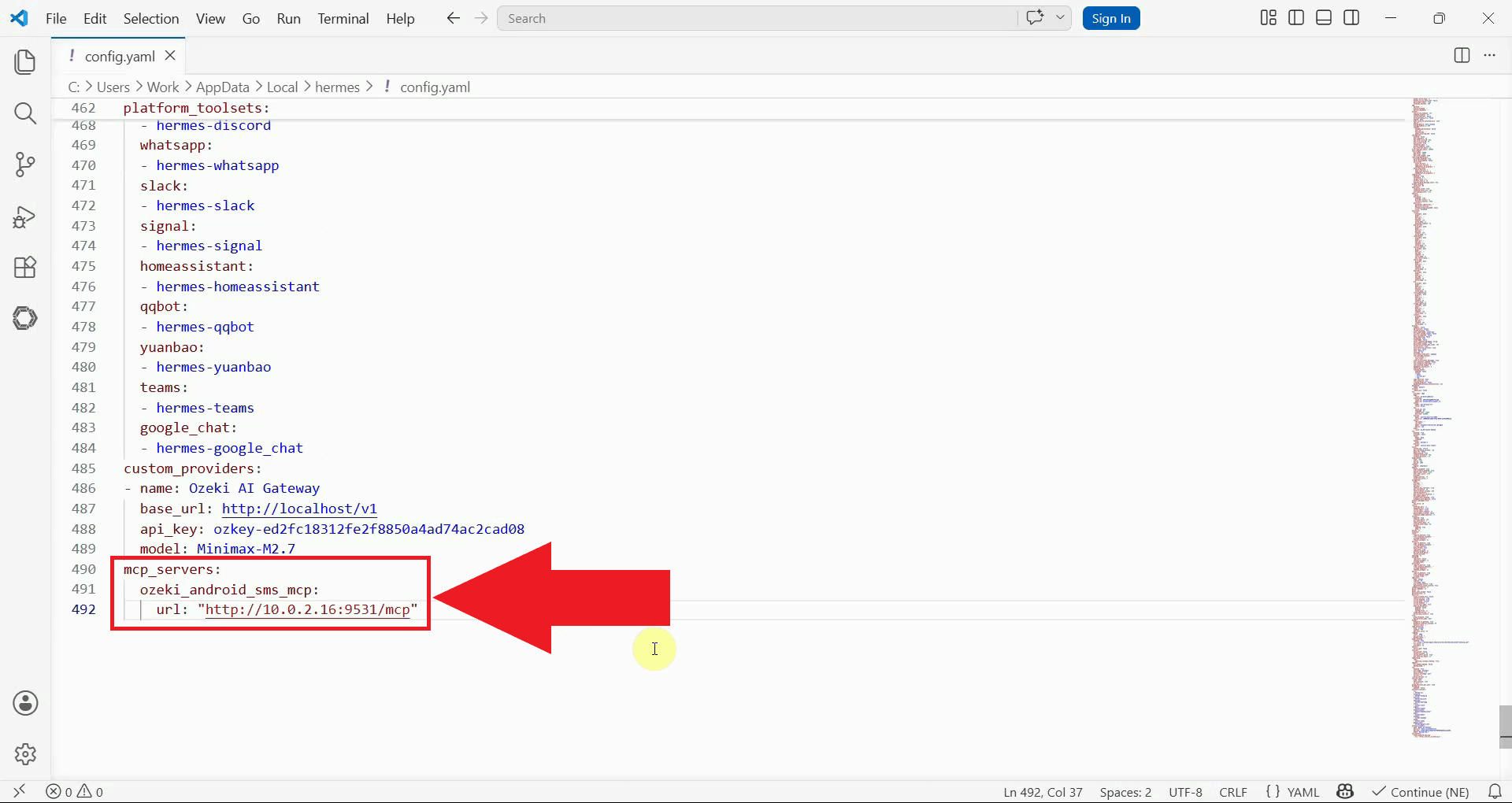
Locate the mcp_servers property in the file. If it does not exist yet, add it
as a new block. Then insert the Android SMS MCP server entry as shown below.
Replace {address} with the IP address shown in the Ozeki SMS Client (Figure 5).
mcp_servers:
  ozeki_android_sms_mcp:
    url: "http://{address}:9531/mcp"
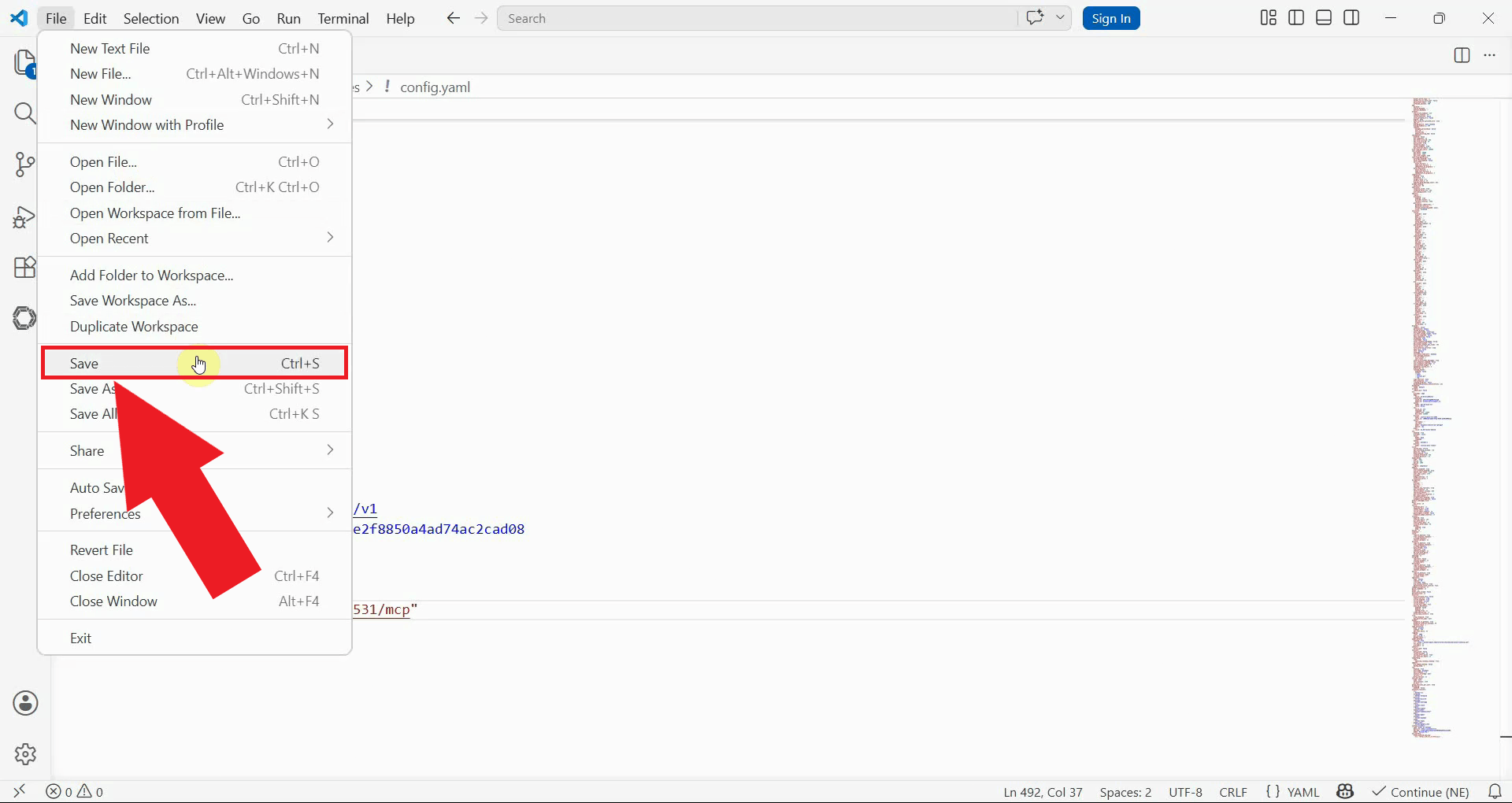
After adding the entry, save the file and close the text editor. The changes will take effect the next time Hermes Agent is started (Figure 6).
Step 5 - Start Hermes Agent and verify connection
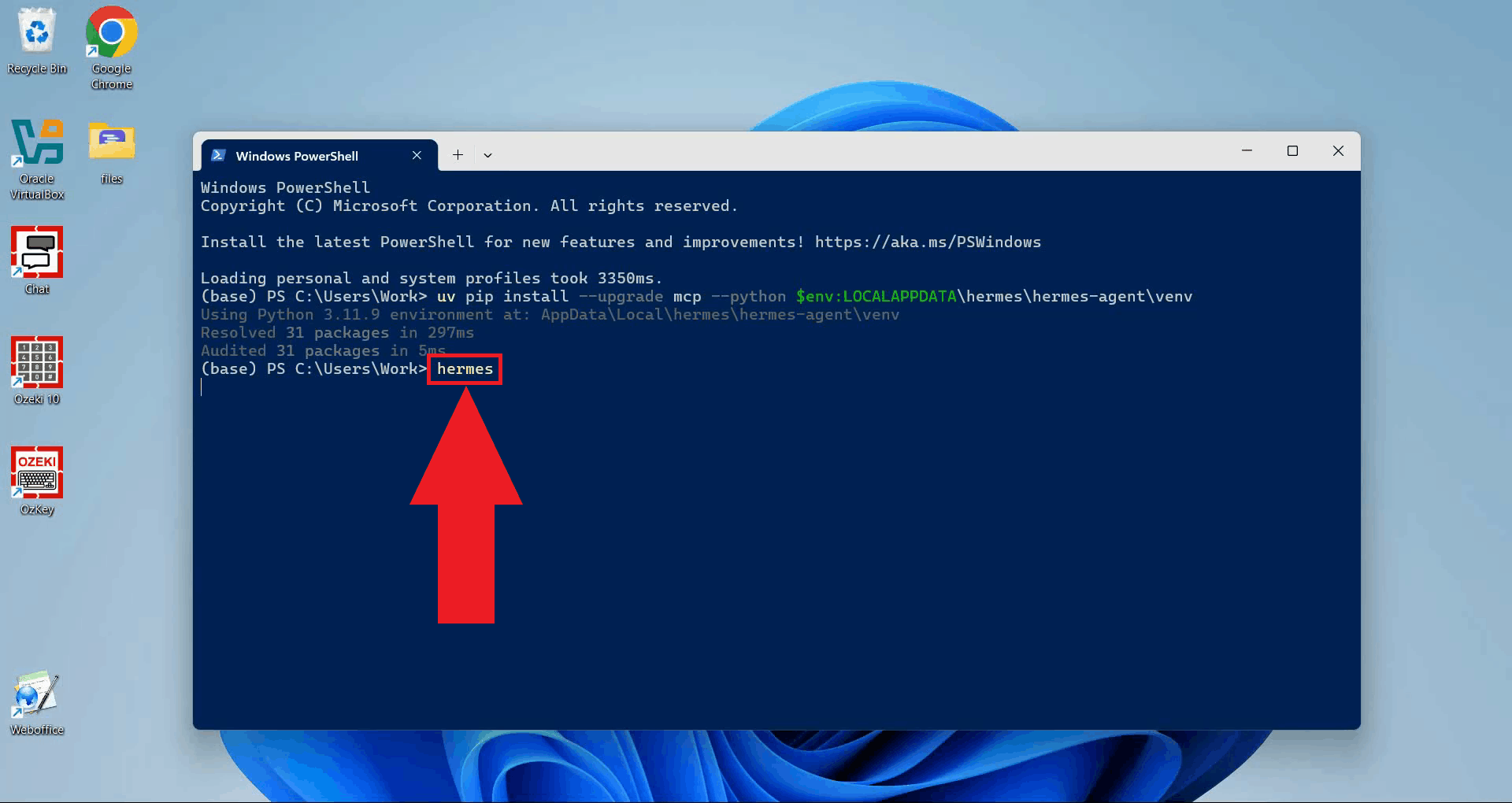
Launch Hermes Agent from the terminal window. It will automatically attempt to connect to all MCP servers listed in the configuration file (Figure 7).
hermes
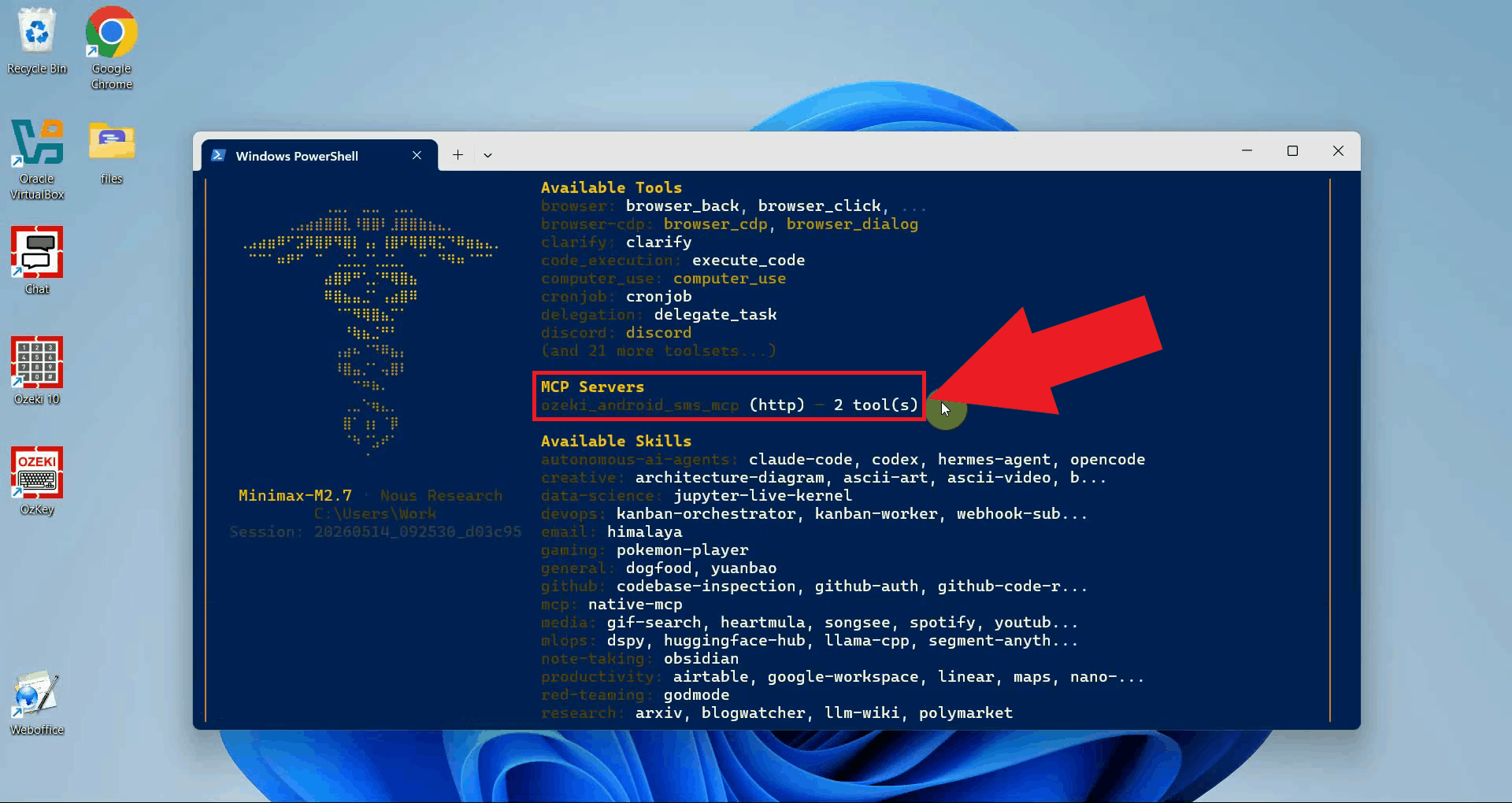
Verify that ozeki_android_sms_mcp appears in the connected MCP servers list and that its status is shown as connected. If the server does not appear or shows an error, check that the MCP service is still running on your Android device and that the IP address in the configuration file is correct (Figure 8).
Step 6 - Send a test SMS
The following video shows how to send an SMS message from Hermes Agent using the Ozeki Android SMS MCP server step-by-step.
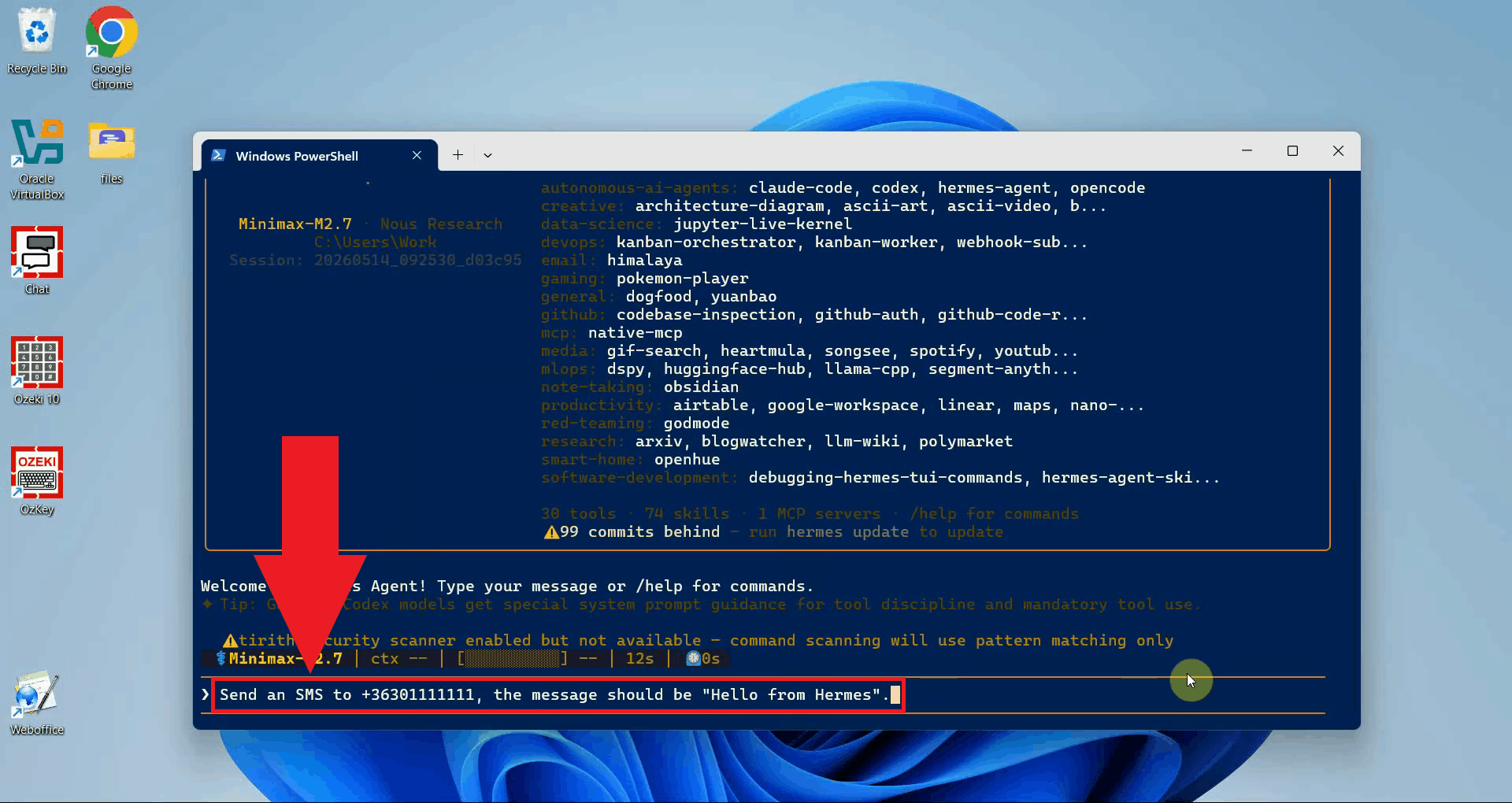
To send an SMS, type a plain language instruction in the prompt. For example, ask to send a message to a specific phone number. Hermes Agent will call the Send SMS tool and process the request (Figure 9).
Send an SMS to +36301111111, the message should be "Hello from Hermes".
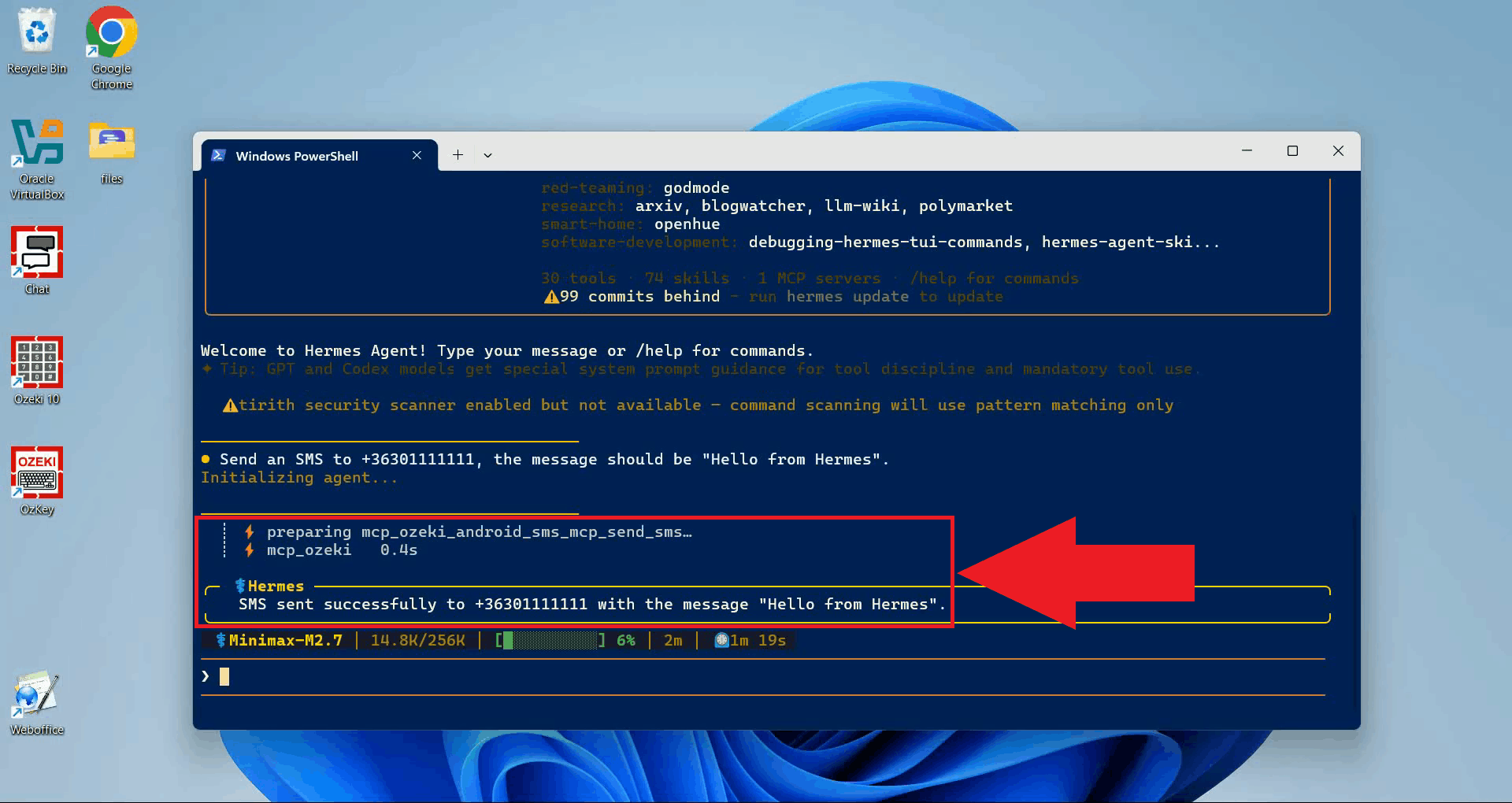
After the tool executes, you will see the result of the Send SMS tool call in the terminal. A successful response confirms that the message has been passed to the Android gateway and queued for delivery (Figure 10).
Step 7 - Check the SMS in the SMS Gateway logs
The following video shows how to check the gateway logs in the Ozeki SMS Client app step-by-step. This allows you to confirm that the SMS request from Hermes Agent was received and processed successfully by the Android gateway.
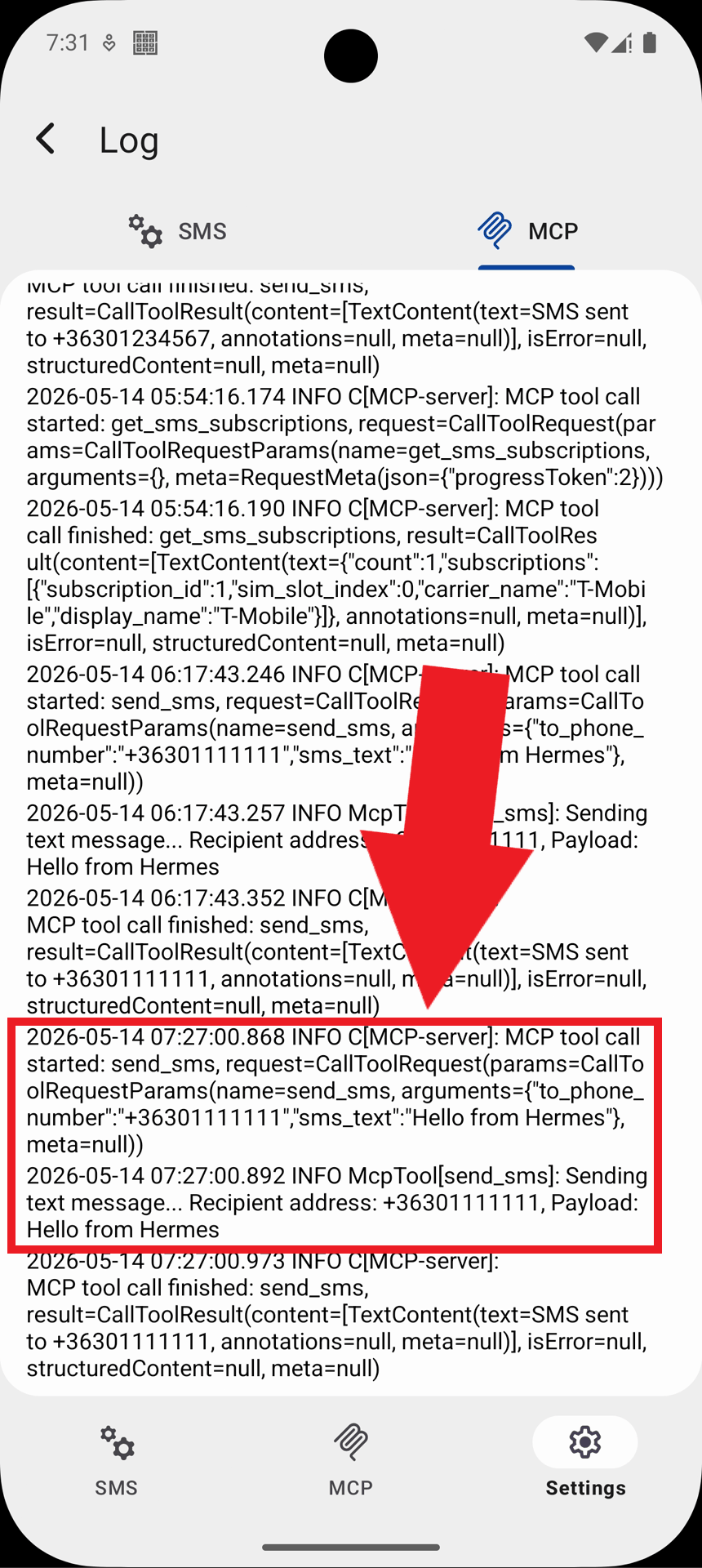
Open the Ozeki SMS Client app on your Android device and navigate to the Settings tab in the bottom navigation bar to access the application settings. Select the Log option to view the request and response history. Open the MCP tab to show only MCP-related activity. (Figure 11).
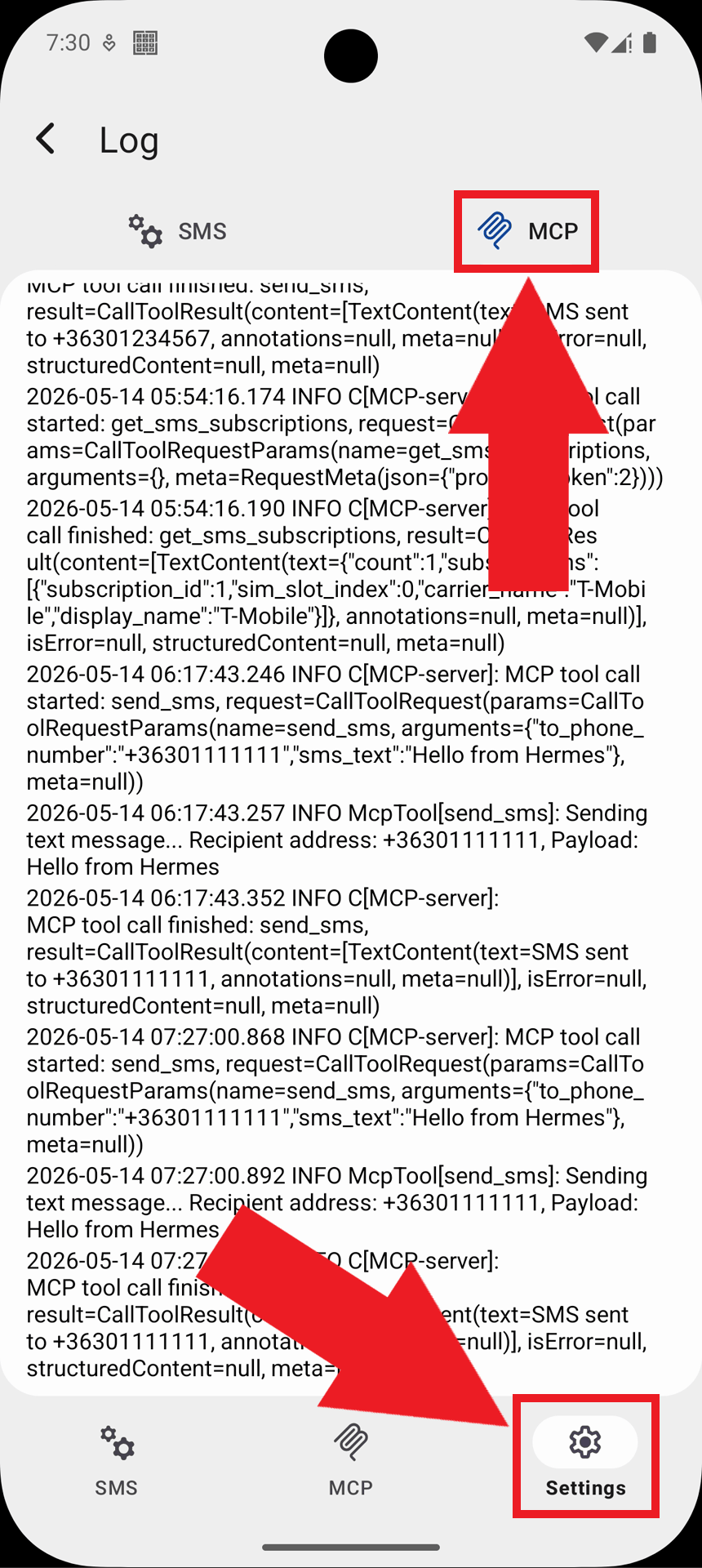
Here you will see the incoming tool call requests from Hermes Agent and the responses sent back, allowing you to confirm that the SMS was dispatched successfully (Figure 12).
Summary
You have successfully configured the Ozeki Android SMS Gateway MCP server with Hermes Agent. Your Android device is now acting as a local SMS gateway that it can communicate with over your local network, enabling text messages to be sent to any phone number using plain language prompts. All SMS traffic is routed through your Android device's mobile connection, with no cloud messaging API or third-party service required — everything runs locally on your own hardware.