
How to enable MCP SMS Server functionality in Ozeki Android SMS Gateway
This guide explains how to enable and configure the MCP SMS Server functionality in the Ozeki Android SMS Gateway application. The Model Context Protocol (MCP) server turns your Android phone into a powerful SMS tool that AI agents can directly use to send and receive text messages. By following the steps below, you will learn how to activate the MCP service, find the API endpoint, and fine-tune settings such as port number, SIM card access, and authentication. Whether you are integrating with an AI assistant or building an automated messaging workflow, this configuration guide will get your MCP SMS Server up and running in minutes.
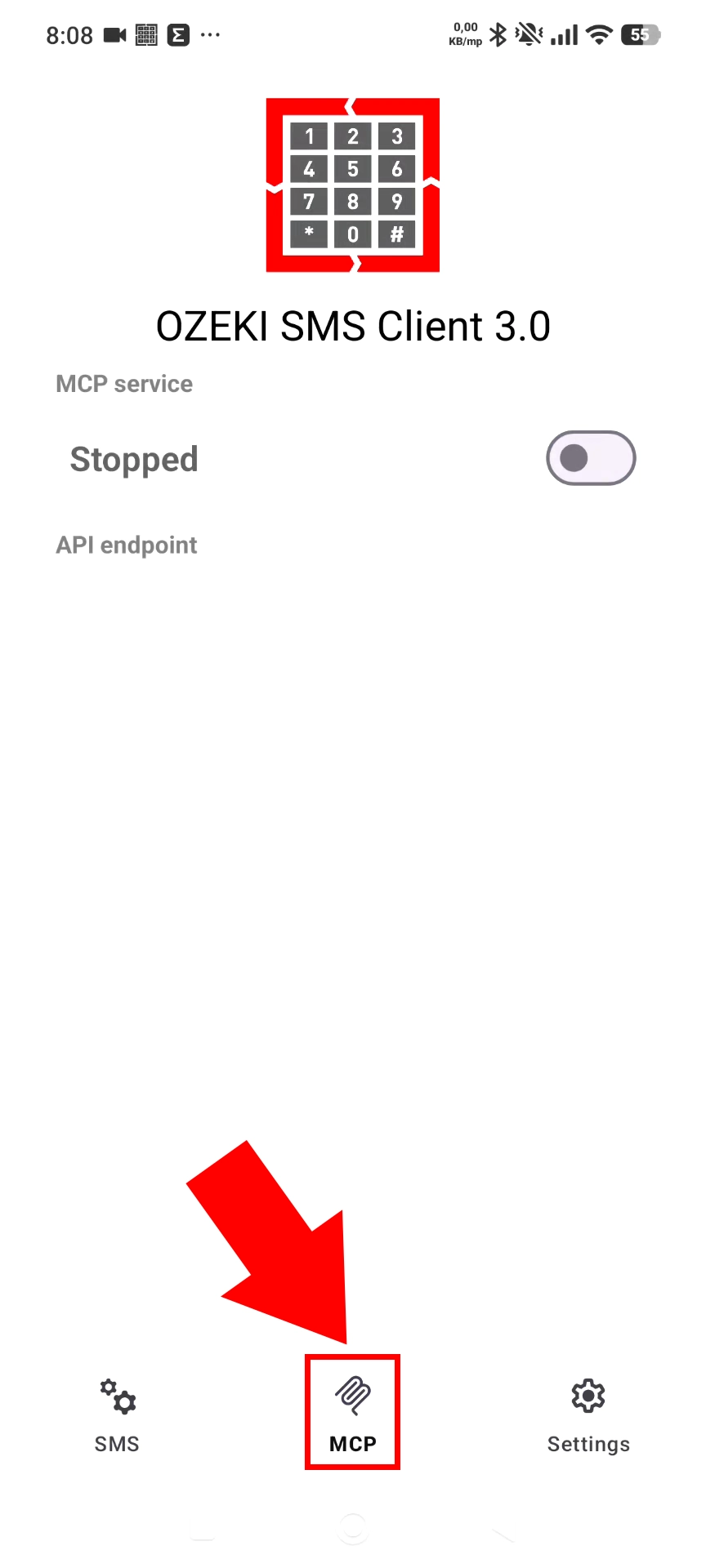
Open the Ozeki SMS Client 3.0 app on your Android device and look at the bottom navigation bar, which contains three tabs: SMS, MCP, and Settings. To begin enabling the MCP SMS Server functionality, tap the MCP tab highlighted by the red arrow at the bottom of the screen. This will take you to the MCP service panel where you can manage and activate the MCP server.
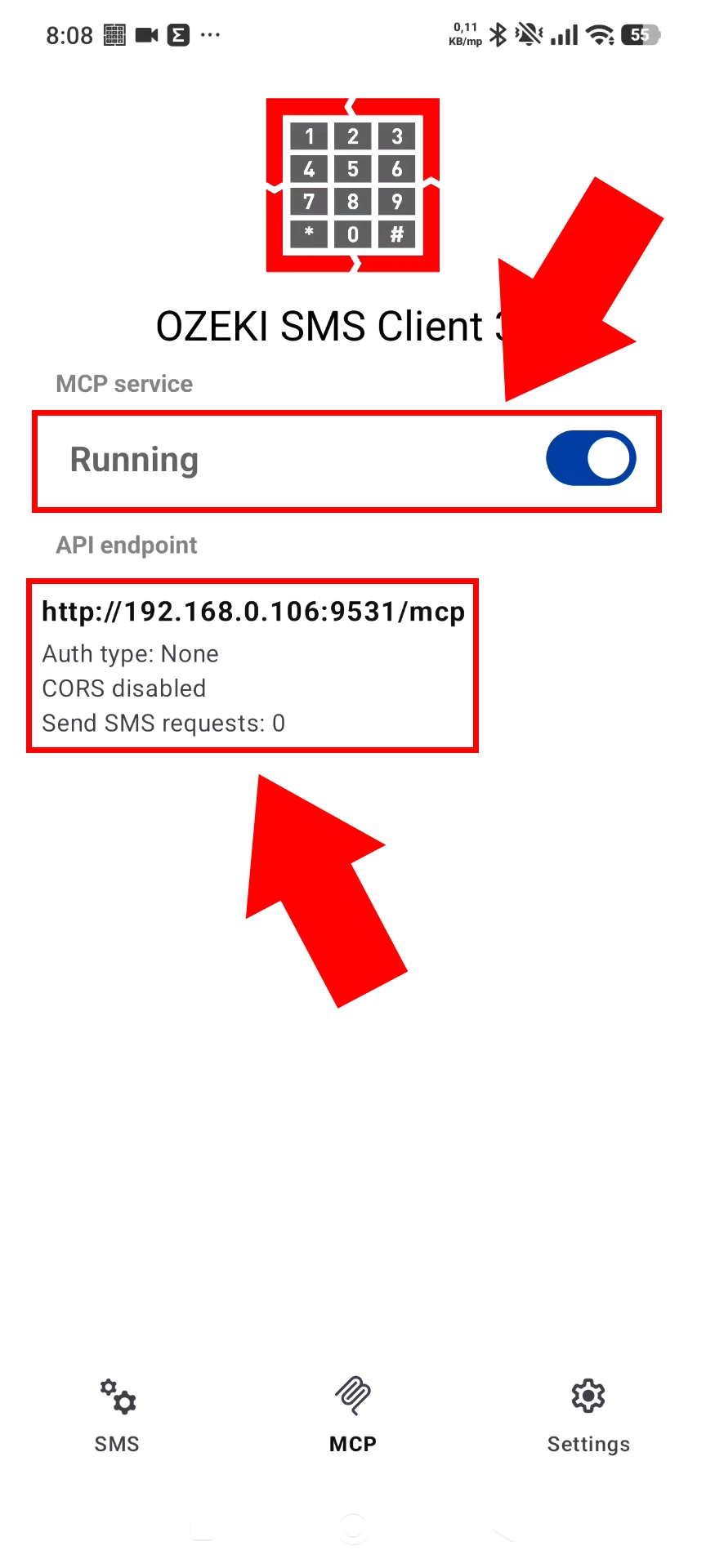
Once you are on the MCP tab, you will see the MCP service toggle switch, which is initially set to "Stopped". Tap the toggle to enable the service — it will switch to "Running" and the API endpoint information (e.g. http://192.168.0.106:9531/mcp) will appear below, confirming that the MCP server is now active. Note the displayed endpoint address, as this is the URL that AI agents or MCP clients will use to connect to the SMS gateway.
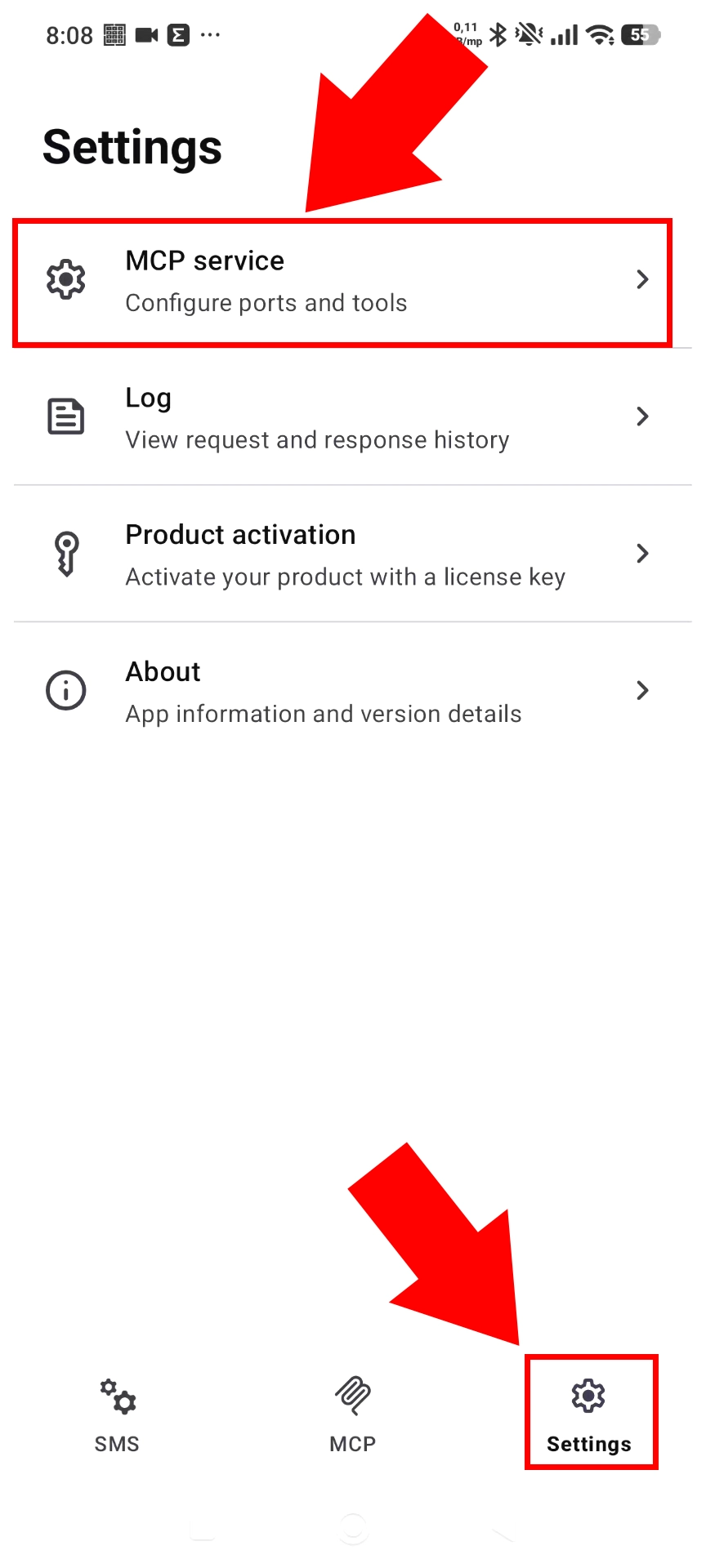
To configure the MCP server further, navigate to the Settings tab using the bottom navigation bar (highlighted by the red arrow). Inside the Settings screen, tap on MCP service — the first option in the list — which allows you to configure ports, tools, and other service parameters. Additional options such as Log, Product activation, and About are also available here for managing the app.
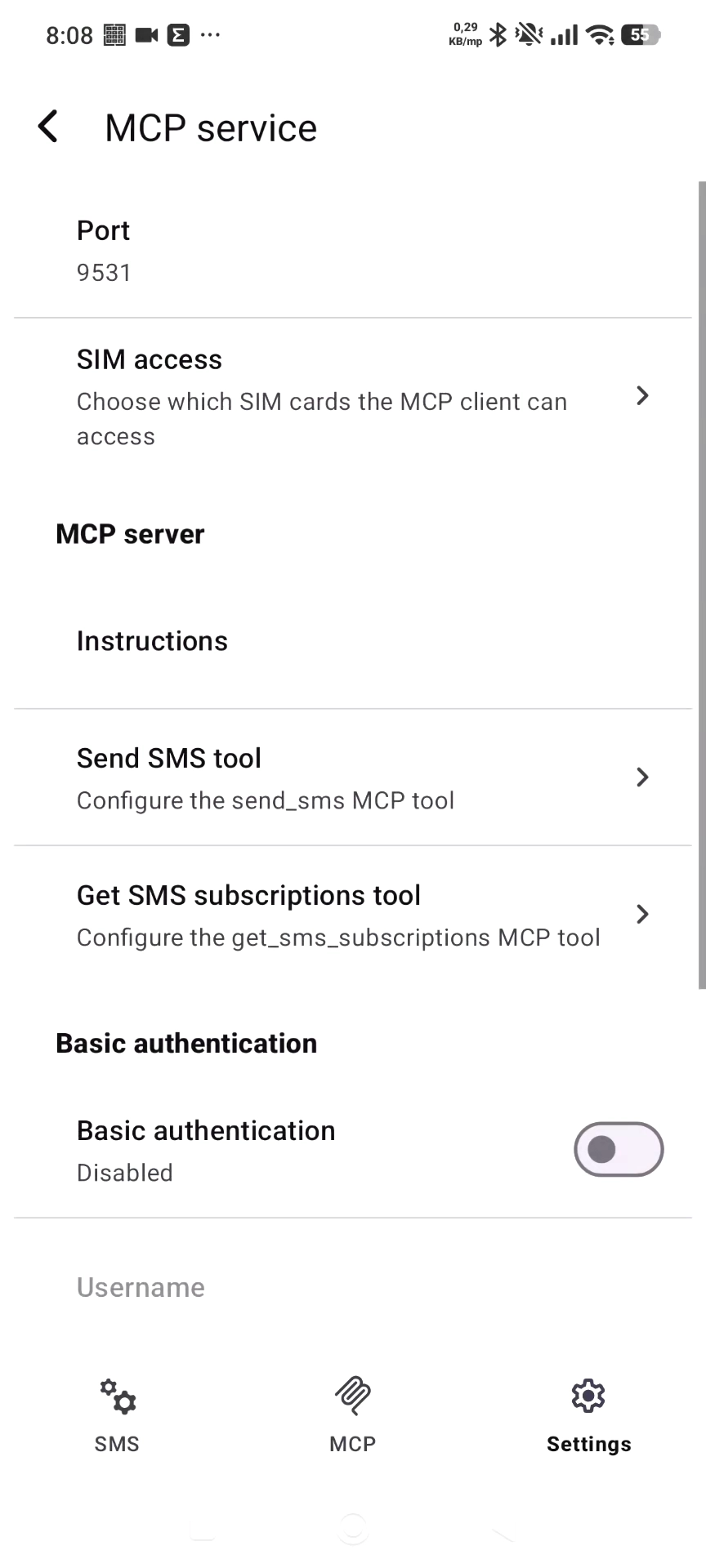
The MCP service settings screen provides detailed configuration options, including the Port number (default: 9531) and SIM access, where you can choose which SIM cards the MCP client is allowed to use. Under the MCP server section, you can configure the Send SMS tool and the Get SMS subscriptions tool, as well as add custom Instructions for the AI agent. At the bottom, Basic authentication can be enabled and configured with a username and password to secure access to the MCP endpoint.
Summary
In summary, enabling the MCP SMS Server in Ozeki Android SMS Gateway is a straightforward process that requires just a few steps inside the Ozeki SMS Client 3.0 app. First, open the app and tap the MCP tab in the bottom navigation bar, then toggle the MCP service on — the app will immediately display the API endpoint URL that MCP clients can connect to. For advanced configuration, navigate to the Settings tab and open the MCP service menu, where you can adjust the port number, restrict SIM card access, configure the Send SMS and Get SMS subscriptions tools, and optionally enable Basic authentication to secure the endpoint. Once the service is running, any compatible AI agent or MCP client on your network can use your Android device as a fully functional SMS gateway.